
Identify your devices
Open the list of connected devices and identify smartphones, TVs, printers, repeaters, smart home devices and guests.
Result: You can see which entries belong to your household.CHECK FRITZ!BOX SECURITY
Security starts with an overview: Check connected devices, updates, access data and important Wi-Fi settings step by step. Then you can see more clearly which additional guidance RouterGuard can offer for compatible FRITZ!Box setups.
CURRENT PRIMARY SOURCES
Menu names and options may change with FRITZ!OS and the model in use. The checklist therefore stays general and links to the current manufacturer documentation for details.
THE QUICK ANSWER
First check connected devices, available updates, your Wi-Fi password, a possible guest network and the security settings relevant to your configuration. Also assess whether remote access is needed. An unknown entry in the device list is not automatically an attack.
A good check helps you assess the situation and prioritize the next steps. The exact names of individual menu items may vary depending on the FRITZ!OS version.
STEP BY STEP
Work through the points at your own pace. What is available depends on your FRITZ!Box, FRITZ!OS version and configuration.
Open the list of connected devices and identify smartphones, TVs, printers, repeaters, smart home devices and guests.
Result: You can see which entries belong to your household.Check whether a current FRITZ!OS version is available for your FRITZ!Box and follow the manufacturer’s guidance.
Result: The update status is clear.Use a strong Wi-Fi password. If there is a well-founded suspicion, change the access data and check again afterwards.
Important: An unknown device name alone does not prove access.Review relevant Wi-Fi and security settings. Use the current manufacturer documentation for your specific interface.
Result: You know the next sensible steps for your configuration.If guests or devices should connect without access to your internal home network, check whether a separate guest network is available.
Important: Available options depend on your FRITZ!Box and FRITZ!OS version.Check whether access from outside is needed for your use case and review the relevant settings.
Result: You can identify unnecessary access paths and assess them deliberately.UNKNOWN DEVICES
Device names can be incomplete, technical or simply unfamiliar to you. First assess the entry using the manufacturer, connection type and devices in your household. If this specific device issue is why you are searching, our separate Wi-Fi check can help.
Identify devices on your Wi-FiWHAT BUILT-IN TOOLS DO
RouterGuard does not replace updates, a secure password or careful review of the device list. A fair check starts with the information provided by your FRITZ!Box itself.
Assess connected devices using the available information and your knowledge of your household.
Keep your FRITZ!Box up to date and check the manufacturer’s guidance for your model.
A strong Wi-Fi password and another check after changes are part of the basic review.
Check whether guests and devices can connect separately without access to your internal home network.
Assess whether access from outside is needed for your use and review the relevant settings.
Use the current manufacturer documentation because menu names and options may vary by FRITZ!OS version.
Menu names, features and requirements may change with FRITZ!OS and product versions.
WHO THIS CHECKLIST IS FOR
This checklist is for households with several devices, home office or smart home components connected through a FRITZ!Box. It helps you review the most important areas in a sensible order and identify open points for your setup.
The examples are guidance, not an automatic diagnosis. The options you actually see depend on your FRITZ!Box, FRITZ!OS version and configuration.
ADDITIONAL OVERVIEW
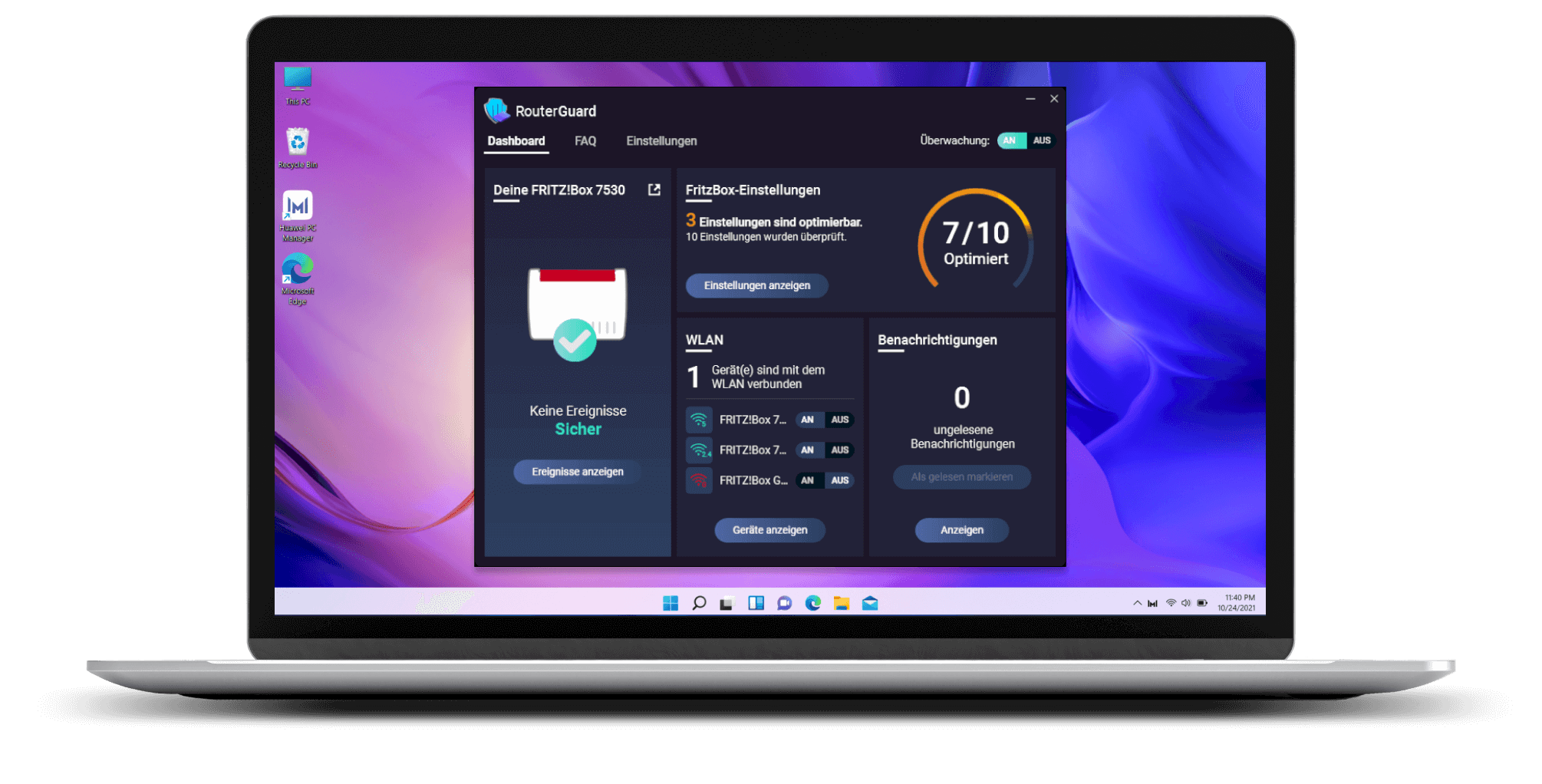
RouterGuard was developed for compatible FRITZ!Box setups and brings information about connected Wi-Fi devices, the security status, selected setting guidance and conspicuous events together in an additional overview.
Important: RouterGuard is not a guarantee of complete security and does not replace updates, secure access data or checking your specific configuration.
Buy RouterGuardFAIRLY COMPARED
Both have their place. What matters is what you want to clarify and what support your setup actually provides.
The first place for the device list, basic settings and manufacturer guidance for your router.
An additional overview for compatible FRITZ!Box setups with device, status and guidance functions.
An unknown device is not automatically an attack. Check the context, access data, updates and settings.
FAQ
First check connected devices, available updates, Wi-Fi access data and relevant security settings. An unknown device is not automatically an attack.
Identify the devices in your FRITZ!Box, keep FRITZ!OS up to date, use a strong Wi-Fi password and review the settings relevant to your configuration. Menu names may vary by version.
For compatible FRITZ!Box setups, RouterGuard can provide an additional overview of connected Wi-Fi devices, the security status and selected setting guidance, as well as information about conspicuous events.
Check the update status, use a strong Wi-Fi password, review the relevant Wi-Fi security settings and consider whether a guest network is appropriate. Available options and menu names depend on the model and FRITZ!OS version.
Change your Wi-Fi password especially if unauthorized people may know it, you want to redefine who has access or you have a well-founded suspicion. Then choose a strong password and reconnect your devices.
No. RouterGuard was developed for FRITZ!Box routers. Actual support depends on the FRITZ!Box, FRITZ!OS and the specific configuration.
NEXT STEP
If you want to check your FRITZ!Box more clearly, learn about RouterGuard and the current trial version.